Odia Keyboard for Android
ଓଡ଼ିଆ କିବୋର୍ଡ
Bharat AI Odia Keyboard lets you type in Odia in English letters and get ଓଡ଼ିଆ script instantly — with smart next-word suggestions, Odia voice typing and one-tap switching to English.
 Scan with your phone camera to install
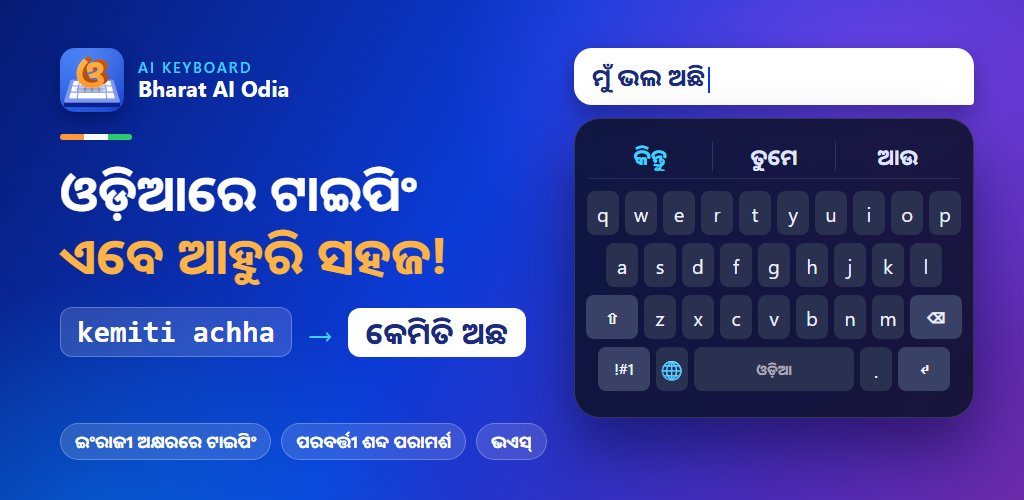
Type Odia in English letters
No Odia layout to memorise. Type phonetically and Bharat AI converts it to ଓଡ଼ିଆ as you go.
| You type | You get | Meaning |
|---|---|---|
| kemiti achanti | କେମିତି ଅଛନ୍ତି | How are you? |
| namaskar | ନମସ୍କାର | Hello |
| dhanyabad | ଧନ୍ୟବାଦ | Thank you |
Why use Bharat AI Odia Keyboard
Odia in English letters typing
Type Odia words the way they sound in English letters and get ଓଡ଼ିଆ script instantly — no need to learn a new layout.
Smart next-word suggestions
The suggestion bar predicts your next Odia word so you can finish sentences with fewer taps.
Odia voice typing
Tap the mic and speak in Odia — your words appear as ଓଡ଼ିଆ text.
Odia + English together
Switch between Odia and English with the globe key, without leaving your chat.
Themes, emoji & stickers
Personalise your keyboard with themes and express yourself with emoji, GIFs and stickers.
Privacy first
Bharat AI Keyboard never stores your passwords or card numbers. Read our privacy policy for details.
How to install the Odia keyboard
- 1
Install Bharat AI Odia Keyboard from Google Play.
- 2
Open the app and tap Enable keyboard.
- 3
Turn on Bharat AI Odia Keyboard in Android settings.
- 4
Select it as your keyboard and start typing in Odia.
Odia keyboard FAQs
Is the Bharat AI Odia Keyboard free?
Yes. Bharat AI Odia Keyboard is free to download from the Google Play Store and works on Android 8.0 and newer.
How do I type Odia using English letters?
Just type how the word sounds in English letters (Odia in English letters). For example, typing "kemiti achanti" gives you କେମିତି ଅଛନ୍ତି. Suggestions appear above the keys so you can pick the right word with one tap.
Can I switch between Odia and English while typing?
Yes. Tap the globe key next to the space bar to switch between Odia and English at any time without leaving your chat.
Does the Odia keyboard work in WhatsApp, Instagram and other apps?
Yes. Once you set Bharat AI Odia Keyboard as your keyboard in Android settings, it works in every app where you type, including WhatsApp, Instagram, Facebook, YouTube, Gmail and SMS.
How do I set Odia keyboard as my default keyboard?
Install the app from Google Play, open it and follow the setup: enable Bharat AI Odia Keyboard in Settings › System › Languages & input › On-screen keyboard, then choose it as your current keyboard.
What is the difference between the Odia edition and the all-languages app?
The Odia edition is set up for Odia out of the box. The all-languages Bharat AI Keyboard app lets you switch between Hindi, Bengali, Tamil, Telugu and other Indian languages in one keyboard. Both are free.
Keyboards for other Indian languages
- हिन्दीHindi Keyboard
- বাংলাBengali Keyboard
- தமிழ்Tamil Keyboard
- తెలుగుTelugu Keyboard
- मराठीMarathi Keyboard
- ગુજરાતીGujarati Keyboard
- ಕನ್ನಡKannada Keyboard
- മലയാളംMalayalam Keyboard
- ਪੰਜਾਬੀPunjabi Keyboard
- অসমীয়াAssamese Keyboard
- नेपालीNepali Keyboard
The all-languages Bharat AI Keyboard switches between 14 languages in one keyboard.
- Hindi, Tamil, Bengali & more
- Translation inside the keyboard